Sunday, July 26, 2015

Xmodgames-Free Game Assistant v2.0.2 Apk

Xmodgames is a mobile game assistant tool, running in the environment with high authority, Android (after rooted) device.
It is created for helping users save time, improve efficiency of game, and get better game experiences. Currently, xmodgames has provided mods,plugins and accelerating function for various hot games. Also, we upgrade and release game mods continuously to meet game users’ maximum needs.
Xmodgames belongs to modded tool APP and it is safe, green, free and without any malicious plug-ins. The app itself aims to helping game users obtain some convenience when playing, instead of affecting the fairness and interest of game.
Games Supported
Clash of Clans
MineCraft PE
Candy Crush Saga
Pet Rescue Saga
Farm Heroes Saga
Piano Tiles
Summoners War
Angry Birds GO
Ace Fishing
2048
Plants vs. Zombies 2
Who Stole Me ?
Subway Surfers
Bubble Witch Saga 2
Epic Heroes
Cheating Tom
The Sims Freeplay
Spider Man Unlimited
The Simpsons : Tapped Out
8 Ball Pool
Asphalt 8 : Airborne
Modern War
Shadow Fight 2
Injustice : Gods Among Us
Godus
Candy Crush Soda Saga
Guns Girl – School DayZ
Boom Beach
Dead Trigger 2
Kritika: The White Knights
Angry Birds Transformers
Heroes Charge
Real Racing 3
And Many more coming soon….

REQUIREMENTS: ROOT ACCESS


Sharing from apkgalaxy.com

Jailbreak iOS 8.3


Jailbreak iOS 8.3

Latest iOS 8.3 Jailbreak Status

Apple released iOS 8.3 for iPhone, iPad and iPod touch on April 8th. It includes new features such as a redesigned Emoji keyboard, CarPlay Wireless, new Siri languages, and a long list of bug fixes and improvements.
TaiG, the group of Chinese hackers, have released TaiG jailbreak tool to jailbreak iOS 8.3, iOS 8.2 and iOS 8.1.3.
The TaiG iOS 8.3 – iOS 8.1.3 jailbreak is compatible with the following devices:
  • iPhone 6, iPhone 6 Plus, iPhone 5s, iPhone 5c, iPhone 5 and iPhone 4s
  • iPad Air 2, iPad mini 3, iPad Air, iPad 4, iPad 3 and iPad 2
  • iPad mini 1 (1st generation iPad mini), iPad mini 2 (Retina iPad mini), iPad mini 3
  • iPod touch 5th generation
Sharing from iphonehacks.com

Tuesday, February 10, 2015

TSF Launcher 3D Shell v3.2.1 Patched Apk


TSF Launcher 3D Shell v3.2.1 Patched Apk

Description

TSF Shell is a brand-new 3D launcher that will subvert your concept of the mobile device home screen operations. It offers smooth, unique and customized man-machine interactive operation experience. You are allowed to define all the elements of the home screen freely and efficiently. TSF Shell keeps creating new features and exclusive 3D widgets that will bring you amazing operation experience and unprecedented visual.

Main features:
========================
1.Fantastic animation transition effects. All operations, including deletion, addition, menu showing-up or vanishing, are provided with natural, glaring and butter-smooth animation transition effects.
2.Miraculous and effective 3D home screen switching mode and freewheeling home screen element layout mode. More than 10 independent layout home screens supported.
3.Unlimited dock bar. Ability to change its position, length and angle as well as to modify the size and the status (hidden or showed) of icons and folders in the dock bar. You can open the apps and the folders in the dock bar with wave-sliding mode.
4.Batch icon selecting for home screens, folders and dock bar.
5.More than 10 TSF Shell exclusive widgets, such as Message, Clock, Weather, Memo, Music, Gallery etc. All 3D widgets provide unique visual and operative experience.
6.More than 9 gestures supported for Android shortcuts, e.g. app launching, phone call, sms, as well as TSF Shell shortcuts, e.g. home screen switching, status bar hiding, TSF Shell side bar hiding.
7.TSF Shell Arch Shortcut Menu with special animation effects and operative experience. Ability to complete quick custom shortcut operations on any home screen.
8.Pioneering icon editing tool. Ability to customize icon back image, upon image, text label style, etc.
9.Many nice free third-party themes are available.
10.Funny and intuitive TSF Shell settings menu. You can preview the corresponding settings directly.
What’s New
Fix Living Wallpaper scrollable issue
Fix SideMenu gesture issue

Requires Android: 2.2 and up

Additional information from Google Play

Sharing From apkgalaxy.com

Sunday, December 14, 2014

How to Jailbreak iOS 8.1.2 on your iPhone, iPad or iPod touch using TaiG


TaiG Jailbreak logo
TaiG team updated their jailbreak to support iOS 8.1.2, which was released by Apple to fix some bugs and address a problem where ringtone purchased through iTunes Store may have been removed form your device..
Here’s how to jailbreak your device running on iOS 8.1.2 using TaiG jailbreak.
Some important points before you proceed:
  • TaiG jailbreak supports following iOS 8.1.1 and iOS 8.1.2 devices:
    • iPhone 6, iPhone 6 Plus, iPhone 5s, iPhone 5c, iPhone 5, iPhone 4S
    • iPad Air 2, iPad Air, iPad 4, iPad 3, iPad 2
    • iPad mini 3, iPad mini 2, iPad mini
    • iPod touch 5G
  • TaiG jailbreak is currently available only for Windows. For now, Mac users will have to run Windows in a virtual machine to use the TaiG jailbreak.
  • Use iCloud or iTunes to back up any and all personal information that you need to keep safe. The jailbreak has been reported to be working in most cases, but on the off chance something goes wrong, it’s a good idea to have an escape plan.
  • Disable any Anti-virus programs or firewalls that could prevent TaiG from connecting to the internet.

Jailbreak iOS 8.1.2 using TaiG jailbreak:

Follow these instructions to jailbreak iOS 8.1.2 using TaiG jailbreak.
Step 1: Download the latest version of TaiG jailbreak from this link on your computer, and unzip the zip file.
Step 2: Connect your device to your computer using the USB cable.
Step 3: Disable Passcode from Settings > Touch ID & Passcode.
Step 4: Also turn off Find my iPhone from Settings > iCloud > Find my iPhone.
Step 5: Please launch the application as an Administrator. Right click on the TaiG exe and select the “Run as Administrator” option.
Step 6: TaiG will take some time to detect your device. Once you confirm that it is showing the correct firmware version, deselect the TaiG App Store (the one in Chinese), just below Cydia 1.1.16.
Step 7: Click on the green jailbreak button to proceed. You will see the circular progress bar.
Step 8: After the jailbreak is complete, your device will reboot automatically, and you should should see the Cydia icon on the Home screen.
You can also check our video walkthrough:


Troubleshooting tips

If you’ve updated over-the-air to the latest iOS 8.0.x or iOS 8.1.2, and the jailbreak didn’t succeed, try doing a fresh install of iOS 8.1.2 via iTunes. Download links and instructions can be found here.
Sharing from iphonehacks.com

Wednesday, November 5, 2014

Download Pangu Jailbreak to Jailbreak iPhone, iPad and iPod touch running iOS 8 – iOS 8.1

Pangu Download

Pangu Jailbreak for iOS 8 - iOS 8
A group of Chinese hackers calling themselves “PanGuTeam” have released the a jailbreak for iOS 8 – iOS 8.1, making it the first jailbreak for iOS 8, and also iPhone 6, iPhone 6 Plus, iPad Air 2 and iPad mini 3. It works with all the iOS 8 – 8.1 compatible devices:
  • iPhone 6, iPhone 6 Plus, iPhone 5s, iPhone 5c, iPhone 5 and iPhone 4s
  • iPad Air, iPad 4, iPad 3 and iPad 2
  • Retina iPad mini, 1st gen iPad mini
  • 5th generation iPod touch

Download Pangu Jailbreak to Jailbreak iPhone, iPad and iPod touch running iOS 8 – iOS 8.1:

Latest version:
Older versions:
  • Pangu 8 1.1.0

How to Jailbreak iOS 8.1 – iOS 8.0.x with Pangu

If you need help on how to use Pangu to jailbreak your iPhone, iPad or iPod touch running iOS 8.0.x – iOS 8.1, follow our latest step-by-step guide.

To Jailbreak iOS 7.1.2 – iOS 7:

Pangu also supports the following devices running on iOS 7.1 – iOS 7.1.2:
  • iPhone 5s, iPhone 5c, iPhone 5, iPhone 4S and iPhone 4
  • iPad Air, iPad 4, iPad 3, iPad 2
  • iPad mini, Retina iPad mini
  • iPod touch 5G

Download Pangu Jailbreak to Jailbreak iPhone, iPad and iPod touch running iOS 7 – iOS 7.1.2:

Direct download link for all the older version of Pangu jailbreak:

How to Jailbreak iOS 7.1 – iOS 7.1.2 with Pangu

If you need help, follow our latest step-by-step guide to jailbreak your iOS device.
If you’re on iOS 7.0.6 or lower then check this webpage for links to the latest tutorials on how to jailbreak your iOS device.

Sharing from iphonehacks.com

Friday, August 29, 2014

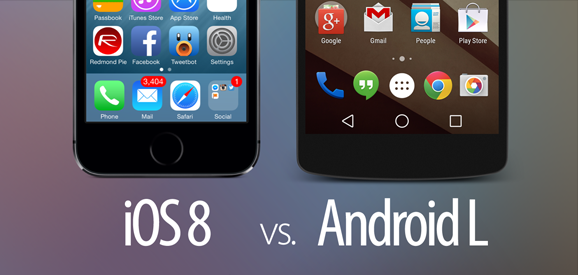
Visual Comparison of iOS 8 vs Android L Features, Icons, UI Elements, Functionality

Brian Williams | 8:57 PM
If you're Apple iOS 8 Firmware user having iOS Devices i.e. iPhone, iPad and iPod Touch, then probably you won't be familiar with Google's latest mobile operating system flagship called "Android L" available for Android smartphones and tablets.Android L is a successor of previously released Android KitKat 4.4 version, Whereas iOS 8 Firmware is a successor of iOS 7 Firmware. For exploration and to give experience of Android flavor to iOS users, and to give iOS flavor to Android users, we are presenting new exciting features, functionality, icons, user-interface elements of both iOS vs. Android competitors to users. This article will show you Differences, Changes, Side-by-Side Visual Graphical Comparison of iOS 8 vs. Android L Features, Icons, UI Elements and Functionality.

Visual Comparison of iOS 8 vs Android L Features, Icons, UI Elements, Functionality

Currently, iOS 8 is under development process just like Android L, iOS 8 Beta and Android L Developer Preview beta is publicly available for testing and experimental purpose by users and developers. Android L build version is still undisclosed byGoogle, but many are guessing it will be Android 4.5 or Android 5.0 version, and also Android L is guessing as "Lemon-lime, Lollipop, Lemon Drop or Lemonade" by most of the users. You can see the Before and After Images of iOS 8 and Android L Features, Icons, UI Elements, Functionality Comparisons i.e. Lock Screen, Home Screen, Phone App, Calendar App, Calculator App, Keyboard App, Notifications Center, Settings App, Multitasking, Control Center / Quick Toggles, Quick-Reply / Lock Screen Notifications and lots more. Shared images are contributed by 'Redmond Pie'. Check out the Infographic, Screenshots & Images based on Comparison of iOS 8Firmware User Interface with Android L Firmware User Interface.

Differences, Changes and Comparison of iOS 8 and Android L via Visual Images


Sharing from techglobex.net


Thursday, August 28, 2014

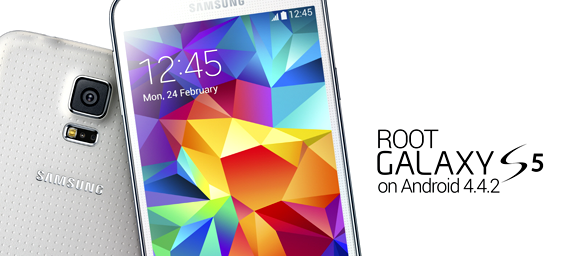
Unlock, Flash & Root Samsung Galaxy S5 All Versions on Android 4.4.2 KitKat

Brian Williams

A very well-known Android developer and recognized member of XDA Developers forum named "Chainfire" has developed a working CF-Auto-Root Tool & Package Files for Samsung Galaxy S5 Smartphone, that allow Galaxy S5 users to Unlock, Flash and Root Samsung Galaxy S5 All Models, Variants, Versions Smartphones Running Android 4.4.2 KitKat mobile operating system.

Root Samsung Galaxy S5 All Models on Android 4.4.2

By using the CF-Auto-Root Tool Packages for All Galaxy S5 Models developed by "Chainfire" will allow users to gain complete root access of Samsung Galaxy S5 Smartphone's operating system to modify, alter and change systems files. Android Rooting is similar to iOS Jailbreaking. 

For Samsung Galaxy S5 Rooting on Android 4.4.2 KitKat using the CF-Auto-Root Tool, Users just required to download the appropriate CF-Auto-Root Package File for their Galaxy S5 models available below. So if you want to know How to Unlock, Flash and Root Samsung Galaxy S5 All Models Running Android 4.4.2 KitKat Using CF-Auto-Root Tool, then just follow the below guide and tutorial.

Prerequisite Notes before Galaxy S5 Rooting:
  • Check and confirm your Galaxy S5 model numbers by going to Settings > About phone > Model Number. And ensure to download the correct root package file for your device.
  • USB Debugging enabled on Galaxy S5. ( Click here for tutorial )
  • USB Drivers installed and configured properly.
  • Ensure at least 80 percent battery charging left. 
  • We, TechGlobeX are neither responsible nor liable for any damage occurs to your device when following this guide and tutorial. So follow at your own risk. 
Prerequisite Downloads before Galaxy S5 Rooting:
  • Download CF-Auto-Root Packages for All Galaxy S5 Models via Direct Links available below:
  • Download Galaxy S5 (SM-G900H) - International Exynos
  • Download Galaxy S5 (SM-G900F) - International Snapdragon
  • Download Galaxy S5 (SM-G900I) - Oceania
  • Download Galaxy S5 (SM-G900L) - Korean model
  • Download Galaxy S5 (SM-G900M) - Model for Middle East and South America
  • Download Galaxy S5 (SM-G900RT) - US Cellular
  • Download Galaxy S5 (SM-G900T) - T-Mobile United States
  • Download Galaxy S5 (SM-G900P) - Sprint
  • Download Galaxy S5 (SM-G900T1) - MetroPCS
  • Download Galaxy S5 (SM-G900W8) - Canadian model
Tutorial on How to Root Samsung Galaxy S5 All Versions Running On Android 4.4.2 KitKat Using CF-Auto-Root

Odin3 v3.09 Tool
Step 1: Download and Install the appropriate CF-Auto-Root package files and Odin3 v3.09 tool from above links and extract files to your PC/Laptop.

Step 2: Now, You need to Boot your Galaxy S5 device in "Download Mode" by press and hold down the "Volume Down, Home and Power Keys" simultaneously. When a warning screen is displayed, press the "Volume Up Key" to enter into "DownloadMode".

Step 3: After that, You can Run Odin3 v3.09.exe Tool as Administrator and then connect your Galaxy S5 device to your PC/Laptop via USB data cable. When a connection established, You will see a message showing "Added" in Odin’s msg box.

Step 4: Now, Click on the "AP Button", and select the "CF-Auto-Root Package File" (.tar.md5 file), Which you extracted in "Step 1" to your PC/Laptop.

Step 5: After that, Make sure that "Auto Reboot" and "F. Reset Time" options are checked while "Repartition" is unchecked on Odin3 Tool.

Step 6: Now, Click on the "Start Button" in Odin3 Tool to start the flashing/rooting process.

Step 7: After the completion of whole process, Your Galaxy S5 will restart and a PASS message with green background will appear in the left-most box at the top of Odin3 Tool. Congratulations!! You have successfully Rooted Galaxy S5 on Android 4.4.2 KitKat.


Sharing from techglobex.net